15 Ways To Enjoy Baby Hazel Games In Stunning 4K Quality
Baby Hazel has taught and entertained children for over ten years, but on ultra HD screens the graphics can be disappointing.
You do not have to choose between a modern TV and classic games. A few simple fixes will deliver clear, colorful visuals so your little one can play and learn.
1. Use The Native IPhone And IPad Apps
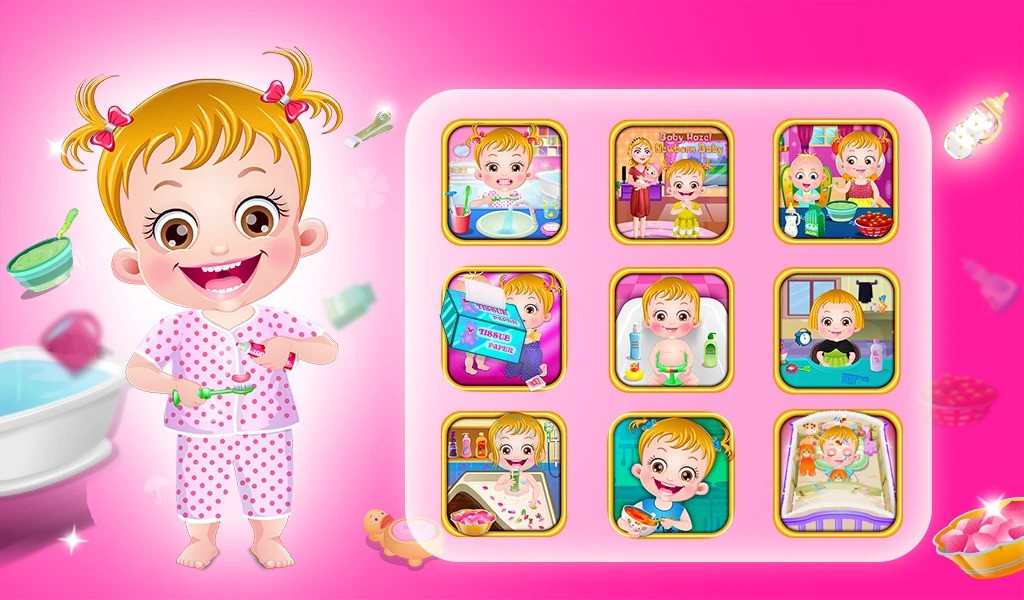
Download the dedicated Baby Hazel apps instead of playing in a browser. Axis Entertainment offers many standalone titles built for Apple devices that look much sharper on modern screens.
These apps support Retina displays and include higher-resolution graphics that scale correctly on iPhones and iPads. They need iOS 12.0 or newer and run on iPadOS tablets without extra setup. The benefits include clearer graphics, better touch response for small hands, no browser scaling problems and the option to play offline.
Popular choices include Baby Hazel Newborn Baby, Baby Hazel Skin Care and Baby Hazel Doctor Play. Many let you pay once to remove ads for a cleaner experience. The iPad Pro’s dense screen brings the best clarity, but even older iPads display these apps more cleanly than browser versions.
2. Improve Browser Display Settings
If you must use a browser, changing zoom and scaling often fixes blur on high-res displays. Try setting page zoom to 150% or 200% in your browser for sharper images. This changes how the page maps to your screen and can make game elements look larger and crisper without stretching pixels.
For Chrome, press Ctrl and + (Cmd and + on a Mac) or go to Settings > Appearance > Page zoom. In Firefox, open Settings > General and use the Zoom options; it can remember the setting per site.
Edge uses the same controls as Chrome and has recent updates that help 4K screens. Some browsers offer an advanced flag called Force Device Scale Factor to match your display’s pixel ratio, but that requires comfort with experimental settings.
3. Set Your 4K TV For Gaming
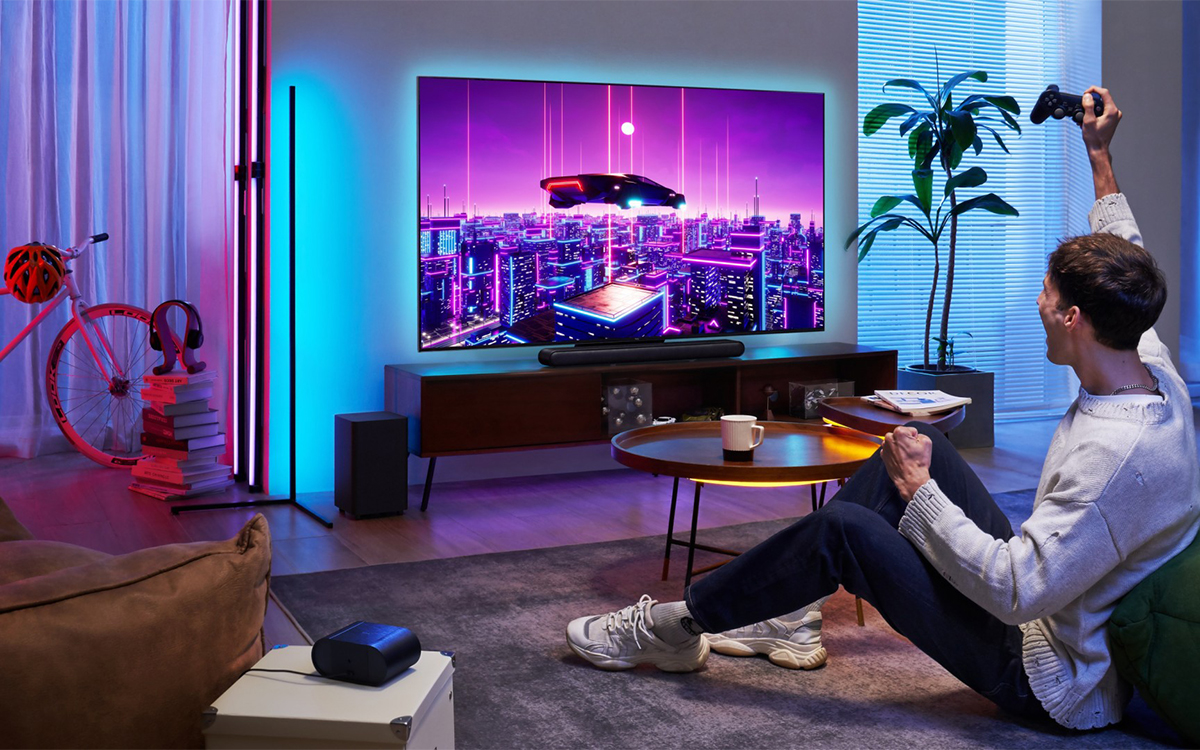
When you play on a 4K TV, change the picture settings to avoid soft or processed images. Turn on Game Mode or PC Mode to reduce lag and stop heavy image processing.
Disable motion smoothing (labels vary by brand) because it makes static game graphics look odd. Keep sharpness low around 10 to 25 to avoid halos and artifacts. Also check that the HDMI port you use supports full 4K at 60Hz.
Game Modelowers input delay and gives a clearer picture for browser games. On Samsung TVs, go to Settings > General > External Device Manager > Game Mode Settings. On LG sets, look under Picture Settings, then Additional Settings.
4. Use Android TV Display Scaling
Many Android-based TVs and streaming boxes have better scaling than other platforms. If your set runs Android TV or Google TV, or you use an Nvidia Shield or Chromecast with Google TV, you can change display density in developer options.
Turn on developer options by tapping the build number seven times in Settings > About, then open Display Size or Display Density.
Raising the density value makes interface elements draw at higher resolution and can make HTML5 games look sharper. For the best results with the Baby Hazel title, install the Play Store app on your TV so the game uses Android’s native rendering instead of a browser.
5. Apply Custom CSS In Your Browser
🔥 Custom CSS in Zen Browser: How to Install and Customize
If you are comfortable with a little coding, browser extensions that inject CSS can stop games from appearing blurry on a high-resolution screen. Extensions like Stylus let you add rules for a single site.
For example, forcing integer scaling and using image-rendering: pixelated keeps pixels sharp when content is enlarged. The zoom property can also target the game canvas for finer control. Look for community-made stylesheets for popular game sites if you want an easy starting point.
6. Use The Right Cable And Settings For A Clear Picture
The cable and port you use affect image quality. HDMI 2.0 supports 4K at 60 frames per second, while older HDMI 1.4 only handles 4K at 30 frames per second, which can make motion look less smooth.
Buy a certified High Speed or Premium High Speed HDMI cable rated for at least 18 Gbps. When you connect a computer, use the discrete GPU output if available, pick the TV’s HDMI port labeled 4K or UHD and set your computer’s output to 3840 x 2160.
Turn on HDR or Deep Color for the HDMI input if the TV supports it. If you have a direct monitor connection, DisplayPort 1.2 or newer is a good alternative and also handles 4K at 60 Hz with strong color depth.
7. Adjust Windows Display Scaling Settings
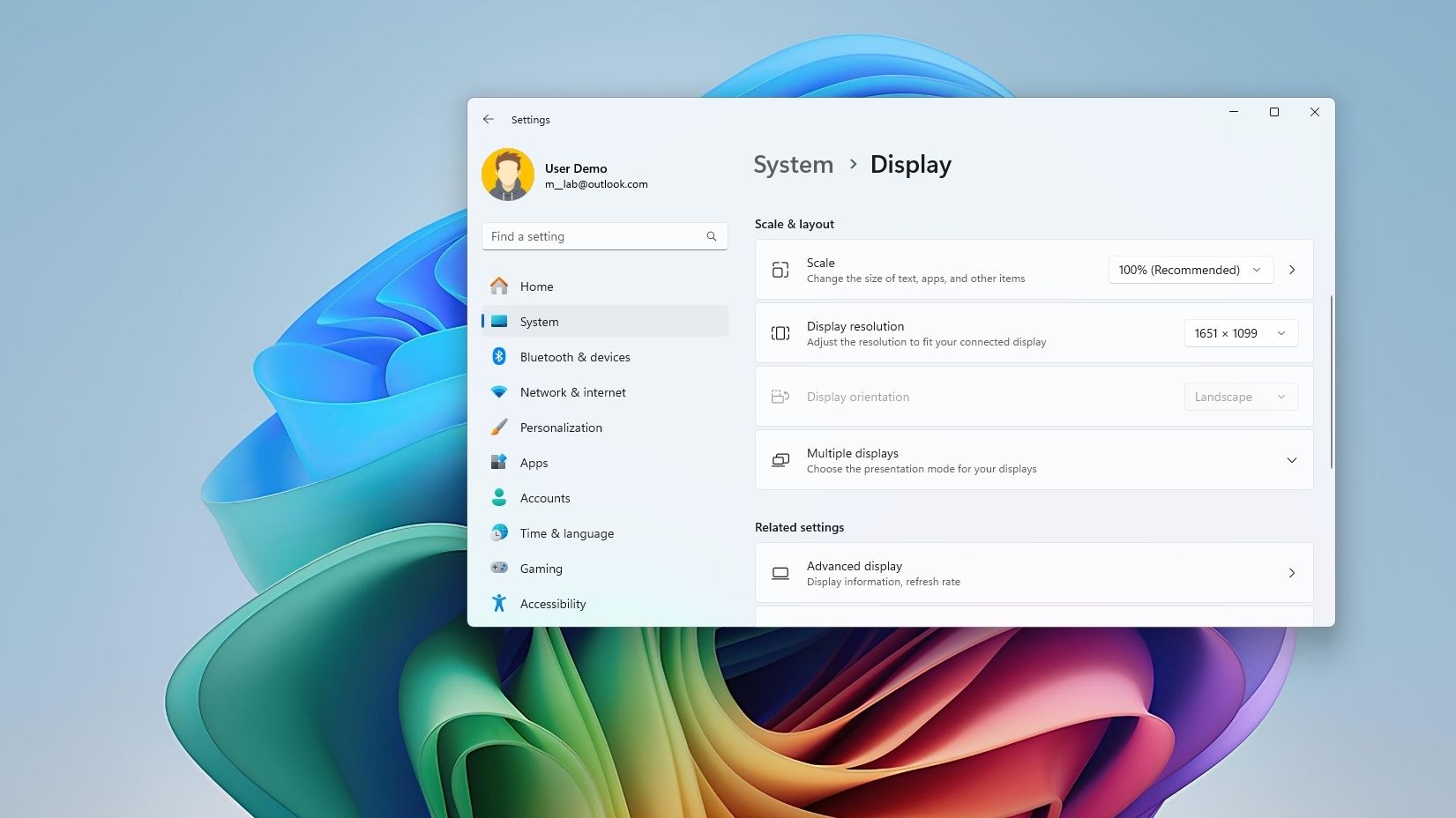
Windows 10 and 11 scale text and icons on 4K screens. That scaling can make browsers show a zoomed or mobile-style version of a site, which breaks how Baby Hazel games look on a large screen. Right-click the desktop and open Display settings. Under Scale and layout you will see a percentage.
To force your browser to use its own scaling, right-click the browser shortcut, choose Properties, open Compatibility, click Change high DPI settings, check Override high DPI scaling behavior, and pick Application.
You can also set a custom scale: click Custom scaling under Scale and layout and enter a value between 100% and your current setting (for example try 125% if you are at 150%). After any change, sign out and sign back in to apply it. Test a few settings with Baby Hazel to find the best balance between size and sharpness.
8. Use IPad Pro ProMotion For Clearer Visuals
An iPad Pro shows Baby Hazel games very sharply and even handles top 4k gamessmoothly. The 11-inch and 12.9-inch models use high pixel density screens that make graphics look crisp and detailed.
Download the Baby Hazel app from the App Store instead of playing in Safari. Native apps use iOS graphics features to render at full resolution, so images are clearer and touch controls feel faster.
Turn on True Tone in Settings > Display & Brightness to make colors gentler on the eyes. Keep iOS updated so older apps scale better on high-resolution screens. For the 11-inch iPad Pro, a viewing distance of about 15 to 20 inches works well for children.
9. Try Your Smart TV Browser Or Cast From Another Device
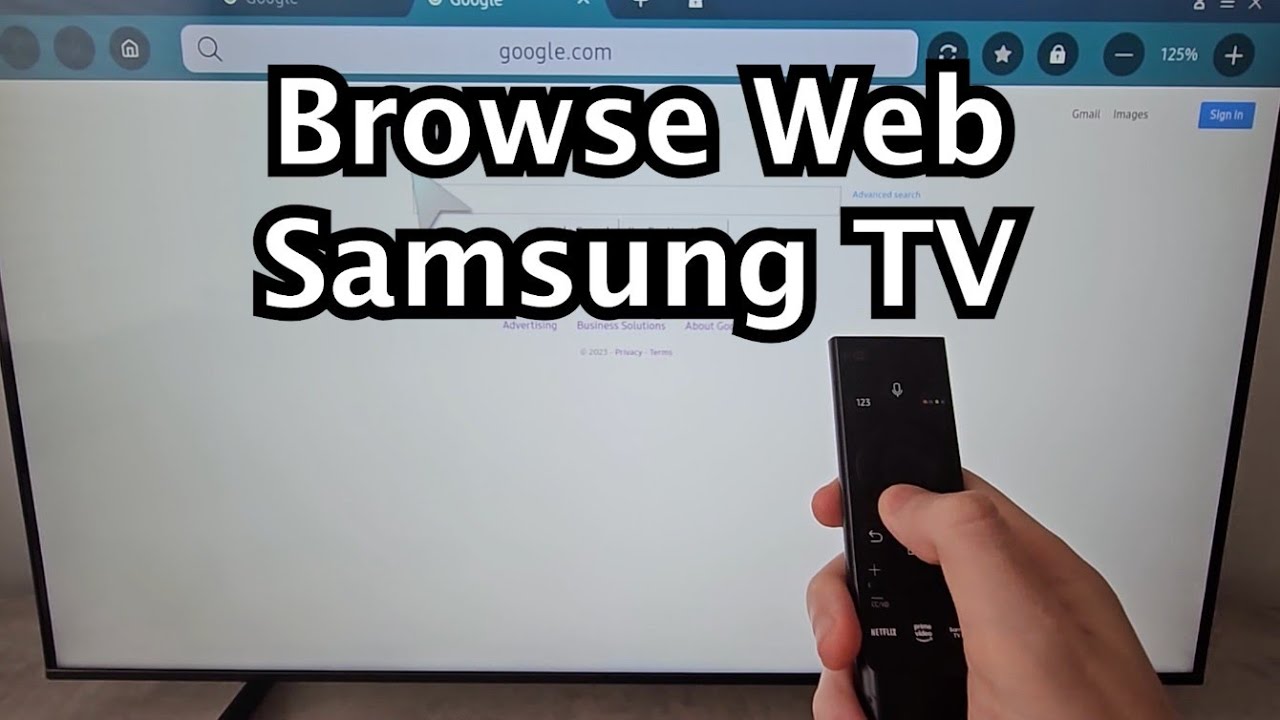
How to Browse Internet on Samsung Smart TV!
Many 4K smart TV browsers load mobile sites by default, which look stretched on a TV. Switch the browser to request the desktop site so you get the full layout and higher-quality graphics.
On Samsung TVs open the browser, go to Settings, and enable Desktop View or Request Desktop Site. On LG webOS press the browser options or settings button and toggle Desktop Site on.
If the TV browser still looks wrong, cast your computer or tablet screen with Chromecast or AirPlay. Casting shows the site as it appears on your device. It can add a little delay, but Baby Hazel games are slow-paced so the small lag usually does not matter and the picture will be much cleaner.
10. Monitor Settings For PC Gaming
Using a 4K computer screen gives you more control than a TV. In your graphics control panel (Nvidia or AMD), choose GPU scaling instead of display scaling so the image is upscaled before it reaches the screen.
Set sharpness to about 50% and pick a response time of Fast or Normal, avoid the Fastest mode because it can create visual artifacts. Use RGB full range (0–255) for more accurate colors.
Confirm Windows is sending the correct refresh rate by opening Display Settings, then Advanced Display Settings, and checking Display adapter properties. If you run a lower resolution, turn on integer scaling (available on Nvidia and Intel) to keep lines and shapes crisp.
11. Try Other Sites With Better Scaling
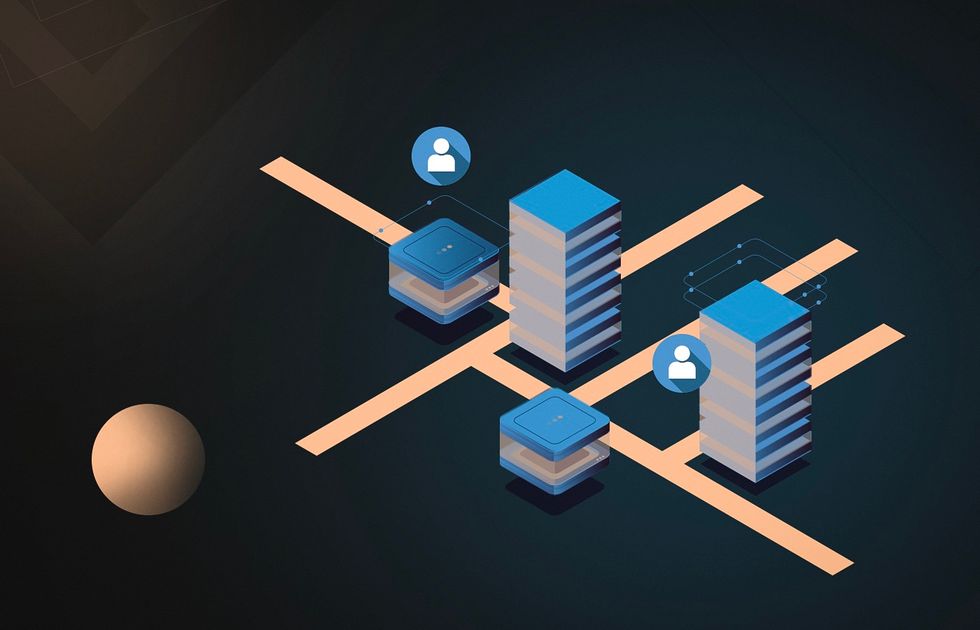
Some game hosts use updated players that work better on high-resolution screens. Look for HTML5 versions or free baby games appson different portals and test the same Baby Hazel title on more than one site to compare how it looks.
Good hosts often use responsive layouts, handle high resolutions better, and show fewer intrusive ads. Save the site that gives the best picture so you can return to it.
12. Enable Browser Hardware Acceleration
Turn on hardware acceleration so your browser uses the GPU to render games on 4K displays. In Chrome go to Settings, System, and enable Use hardware acceleration when available, then restart the browser.
In Firefox open Settings, General, Performance, uncheck Use recommended performance settings, and enable hardware acceleration. In Edge go to Settings, System and performance, and enable the same option.
If graphics are choppy, you see tearing, the browser becomes slow, or the CPU hits 100% while the GPU is idle, update your graphics driver and recheck these settings after browser updates.
13. Use A Tablet Made For Kids
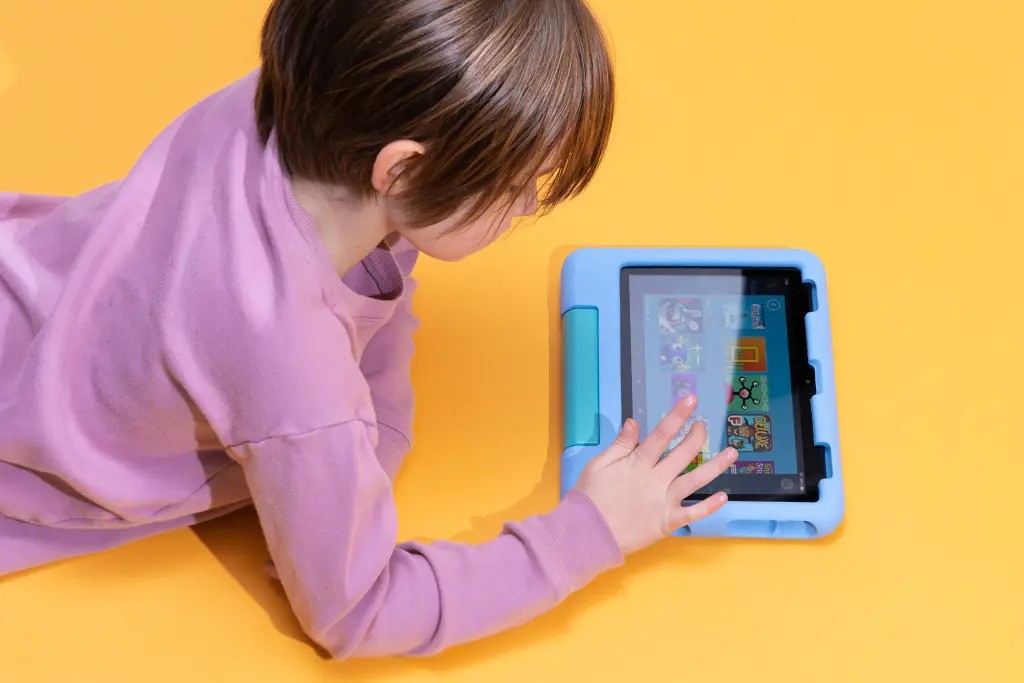
Buy a tablet built for children for the best mix of safety, portability, and clear display for Baby Hazel games. Amazon Fire HD tablets give great value and sharp images on HD 10 models.
Samsung Galaxy Tab models with Super AMOLED screens show bright, lively color and run learning apps smoothly. iPad 9th generation and iPad Air are good alternatives to the Pro that still deliver a crisp picture at a lower price.
These devices include parental controls to limit playtime and block content, touch controls that are easy for young hands and sturdy cases that protect against drops. Keep the device at least an arm’s length from a child’s eyes to reduce strain.
14. Use Fullscreen Carefully
Many Baby Hazel game pages have a fullscreen button that removes browser elements and fills the screen. Going fullscreen can make the game look clearer on high-resolution displays because it lets the game render at a larger size.
If the picture looks soft, exit fullscreen, raise your browser zoom to about 125–150 percent, then try fullscreen again. If fullscreen causes black bars, stretched images, or parts of the game to go off screen, exit and try a different zoom level.
15. Combine Settings For The Best Result
For smooth, sharp play, try a few changes that match your setup. On a 4K TV, turn on Game Mode, use a fast HDMI cable, set browser zoom higher, play the game in fullscreen, lower TV motion smoothing and set sharpness modestly.
On a PC monitor, enable GPU scaling, use 100–125 percent display scaling, allow browser hardware accelerationand try integer scaling if your graphics driver offers it.
On tablets, install the native app, keep the system updated, enable display improvements like True Tone or adaptive brightness and manage session length with screen time controls.
FAQs About Playing Baby Hazel Games In 4K
Will Baby Hazel Games Get Native 4K Support Someday?
Mobile apps already render at higher resolutions, so they look best on modern devices. Reworking the whole library for native 4K is unlikely because it would take a lot of work.
Are Baby Hazel Games Safe For Young Children On 4K Screens?
The content is made for young kids. Still, limit playtime and keep screens at a safe distance.
Can I Play Baby Hazel Games Offline On A 4K TV?
Browser versions usually need an internet connection. Mobile apps for iOS or Android often work offline after you download themtablet to the television using a streaming device.
Do Baby Hazel Games Teach Real Skills Even If They Are Older?
The games teach basic life lessons like hygiene, caring for pets, simple cooking steps, time use and kindness.
Which Baby Hazel Titles Look Best On High-resolution Screens?
Newer releases and simpler art styles scale better.
How Does Screen Size Change Game Quality On 4K Displays?
A small 4K monitor will look sharper than a large 4K TV showing the same image because pixels sit closer together on the smaller panel.
Final Thoughts
Your 4K monitor or TV can run Baby Hazel games without losing quality. Try the official iOS or Android apps first, they usually work best and need little setup. If you play in a browser, change the display settings, zoom level and TV picture mode.
Clear images cut eye strain, help children recognize on-screen items and support learning. A few simple adjustments let you enjoy modern screens and these classic educational games together.
Also Check Out: Best Budget 4k Camera For Filmmaking
You do not have to choose between a modern TV and classic games. A few simple fixes will deliver clear, colorful visuals so your little one can play and learn.
1. Use The Native IPhone And IPad Apps
Download the dedicated Baby Hazel apps instead of playing in a browser. Axis Entertainment offers many standalone titles built for Apple devices that look much sharper on modern screens.
These apps support Retina displays and include higher-resolution graphics that scale correctly on iPhones and iPads. They need iOS 12.0 or newer and run on iPadOS tablets without extra setup. The benefits include clearer graphics, better touch response for small hands, no browser scaling problems and the option to play offline.
Popular choices include Baby Hazel Newborn Baby, Baby Hazel Skin Care and Baby Hazel Doctor Play. Many let you pay once to remove ads for a cleaner experience. The iPad Pro’s dense screen brings the best clarity, but even older iPads display these apps more cleanly than browser versions.
2. Improve Browser Display Settings
If you must use a browser, changing zoom and scaling often fixes blur on high-res displays. Try setting page zoom to 150% or 200% in your browser for sharper images. This changes how the page maps to your screen and can make game elements look larger and crisper without stretching pixels.
For Chrome, press Ctrl and + (Cmd and + on a Mac) or go to Settings > Appearance > Page zoom. In Firefox, open Settings > General and use the Zoom options; it can remember the setting per site.
Edge uses the same controls as Chrome and has recent updates that help 4K screens. Some browsers offer an advanced flag called Force Device Scale Factor to match your display’s pixel ratio, but that requires comfort with experimental settings.
3. Set Your 4K TV For Gaming
When you play on a 4K TV, change the picture settings to avoid soft or processed images. Turn on Game Mode or PC Mode to reduce lag and stop heavy image processing.
Disable motion smoothing (labels vary by brand) because it makes static game graphics look odd. Keep sharpness low around 10 to 25 to avoid halos and artifacts. Also check that the HDMI port you use supports full 4K at 60Hz.
Game Modelowers input delay and gives a clearer picture for browser games. On Samsung TVs, go to Settings > General > External Device Manager > Game Mode Settings. On LG sets, look under Picture Settings, then Additional Settings.
4. Use Android TV Display Scaling
Many Android-based TVs and streaming boxes have better scaling than other platforms. If your set runs Android TV or Google TV, or you use an Nvidia Shield or Chromecast with Google TV, you can change display density in developer options.
Turn on developer options by tapping the build number seven times in Settings > About, then open Display Size or Display Density.
Raising the density value makes interface elements draw at higher resolution and can make HTML5 games look sharper. For the best results with the Baby Hazel title, install the Play Store app on your TV so the game uses Android’s native rendering instead of a browser.
5. Apply Custom CSS In Your Browser
🔥 Custom CSS in Zen Browser: How to Install and Customize
If you are comfortable with a little coding, browser extensions that inject CSS can stop games from appearing blurry on a high-resolution screen. Extensions like Stylus let you add rules for a single site.
For example, forcing integer scaling and using image-rendering: pixelated keeps pixels sharp when content is enlarged. The zoom property can also target the game canvas for finer control. Look for community-made stylesheets for popular game sites if you want an easy starting point.
6. Use The Right Cable And Settings For A Clear Picture
The cable and port you use affect image quality. HDMI 2.0 supports 4K at 60 frames per second, while older HDMI 1.4 only handles 4K at 30 frames per second, which can make motion look less smooth.
Buy a certified High Speed or Premium High Speed HDMI cable rated for at least 18 Gbps. When you connect a computer, use the discrete GPU output if available, pick the TV’s HDMI port labeled 4K or UHD and set your computer’s output to 3840 x 2160.
Turn on HDR or Deep Color for the HDMI input if the TV supports it. If you have a direct monitor connection, DisplayPort 1.2 or newer is a good alternative and also handles 4K at 60 Hz with strong color depth.
7. Adjust Windows Display Scaling Settings
Windows 10 and 11 scale text and icons on 4K screens. That scaling can make browsers show a zoomed or mobile-style version of a site, which breaks how Baby Hazel games look on a large screen. Right-click the desktop and open Display settings. Under Scale and layout you will see a percentage.
To force your browser to use its own scaling, right-click the browser shortcut, choose Properties, open Compatibility, click Change high DPI settings, check Override high DPI scaling behavior, and pick Application.
You can also set a custom scale: click Custom scaling under Scale and layout and enter a value between 100% and your current setting (for example try 125% if you are at 150%). After any change, sign out and sign back in to apply it. Test a few settings with Baby Hazel to find the best balance between size and sharpness.
8. Use IPad Pro ProMotion For Clearer Visuals
An iPad Pro shows Baby Hazel games very sharply and even handles top 4k gamessmoothly. The 11-inch and 12.9-inch models use high pixel density screens that make graphics look crisp and detailed.
Download the Baby Hazel app from the App Store instead of playing in Safari. Native apps use iOS graphics features to render at full resolution, so images are clearer and touch controls feel faster.
Turn on True Tone in Settings > Display & Brightness to make colors gentler on the eyes. Keep iOS updated so older apps scale better on high-resolution screens. For the 11-inch iPad Pro, a viewing distance of about 15 to 20 inches works well for children.
9. Try Your Smart TV Browser Or Cast From Another Device
How to Browse Internet on Samsung Smart TV!
Many 4K smart TV browsers load mobile sites by default, which look stretched on a TV. Switch the browser to request the desktop site so you get the full layout and higher-quality graphics.
On Samsung TVs open the browser, go to Settings, and enable Desktop View or Request Desktop Site. On LG webOS press the browser options or settings button and toggle Desktop Site on.
If the TV browser still looks wrong, cast your computer or tablet screen with Chromecast or AirPlay. Casting shows the site as it appears on your device. It can add a little delay, but Baby Hazel games are slow-paced so the small lag usually does not matter and the picture will be much cleaner.
10. Monitor Settings For PC Gaming
Using a 4K computer screen gives you more control than a TV. In your graphics control panel (Nvidia or AMD), choose GPU scaling instead of display scaling so the image is upscaled before it reaches the screen.
Set sharpness to about 50% and pick a response time of Fast or Normal, avoid the Fastest mode because it can create visual artifacts. Use RGB full range (0–255) for more accurate colors.
Confirm Windows is sending the correct refresh rate by opening Display Settings, then Advanced Display Settings, and checking Display adapter properties. If you run a lower resolution, turn on integer scaling (available on Nvidia and Intel) to keep lines and shapes crisp.
11. Try Other Sites With Better Scaling
Some game hosts use updated players that work better on high-resolution screens. Look for HTML5 versions or free baby games appson different portals and test the same Baby Hazel title on more than one site to compare how it looks.
Good hosts often use responsive layouts, handle high resolutions better, and show fewer intrusive ads. Save the site that gives the best picture so you can return to it.
12. Enable Browser Hardware Acceleration
Turn on hardware acceleration so your browser uses the GPU to render games on 4K displays. In Chrome go to Settings, System, and enable Use hardware acceleration when available, then restart the browser.
In Firefox open Settings, General, Performance, uncheck Use recommended performance settings, and enable hardware acceleration. In Edge go to Settings, System and performance, and enable the same option.
If graphics are choppy, you see tearing, the browser becomes slow, or the CPU hits 100% while the GPU is idle, update your graphics driver and recheck these settings after browser updates.
13. Use A Tablet Made For Kids
Buy a tablet built for children for the best mix of safety, portability, and clear display for Baby Hazel games. Amazon Fire HD tablets give great value and sharp images on HD 10 models.
Samsung Galaxy Tab models with Super AMOLED screens show bright, lively color and run learning apps smoothly. iPad 9th generation and iPad Air are good alternatives to the Pro that still deliver a crisp picture at a lower price.
These devices include parental controls to limit playtime and block content, touch controls that are easy for young hands and sturdy cases that protect against drops. Keep the device at least an arm’s length from a child’s eyes to reduce strain.
14. Use Fullscreen Carefully
Many Baby Hazel game pages have a fullscreen button that removes browser elements and fills the screen. Going fullscreen can make the game look clearer on high-resolution displays because it lets the game render at a larger size.
If the picture looks soft, exit fullscreen, raise your browser zoom to about 125–150 percent, then try fullscreen again. If fullscreen causes black bars, stretched images, or parts of the game to go off screen, exit and try a different zoom level.
15. Combine Settings For The Best Result
For smooth, sharp play, try a few changes that match your setup. On a 4K TV, turn on Game Mode, use a fast HDMI cable, set browser zoom higher, play the game in fullscreen, lower TV motion smoothing and set sharpness modestly.
On a PC monitor, enable GPU scaling, use 100–125 percent display scaling, allow browser hardware accelerationand try integer scaling if your graphics driver offers it.
On tablets, install the native app, keep the system updated, enable display improvements like True Tone or adaptive brightness and manage session length with screen time controls.
FAQs About Playing Baby Hazel Games In 4K
Will Baby Hazel Games Get Native 4K Support Someday?
Mobile apps already render at higher resolutions, so they look best on modern devices. Reworking the whole library for native 4K is unlikely because it would take a lot of work.
Are Baby Hazel Games Safe For Young Children On 4K Screens?
The content is made for young kids. Still, limit playtime and keep screens at a safe distance.
Can I Play Baby Hazel Games Offline On A 4K TV?
Browser versions usually need an internet connection. Mobile apps for iOS or Android often work offline after you download themtablet to the television using a streaming device.
Do Baby Hazel Games Teach Real Skills Even If They Are Older?
The games teach basic life lessons like hygiene, caring for pets, simple cooking steps, time use and kindness.
Which Baby Hazel Titles Look Best On High-resolution Screens?
Newer releases and simpler art styles scale better.
How Does Screen Size Change Game Quality On 4K Displays?
A small 4K monitor will look sharper than a large 4K TV showing the same image because pixels sit closer together on the smaller panel.
Final Thoughts
Your 4K monitor or TV can run Baby Hazel games without losing quality. Try the official iOS or Android apps first, they usually work best and need little setup. If you play in a browser, change the display settings, zoom level and TV picture mode.
Clear images cut eye strain, help children recognize on-screen items and support learning. A few simple adjustments let you enjoy modern screens and these classic educational games together.
Also Check Out: Best Budget 4k Camera For Filmmaking